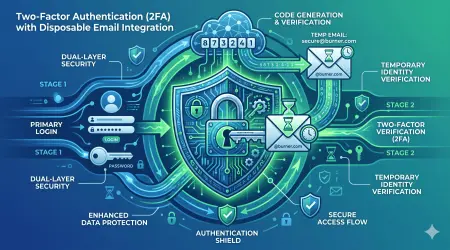
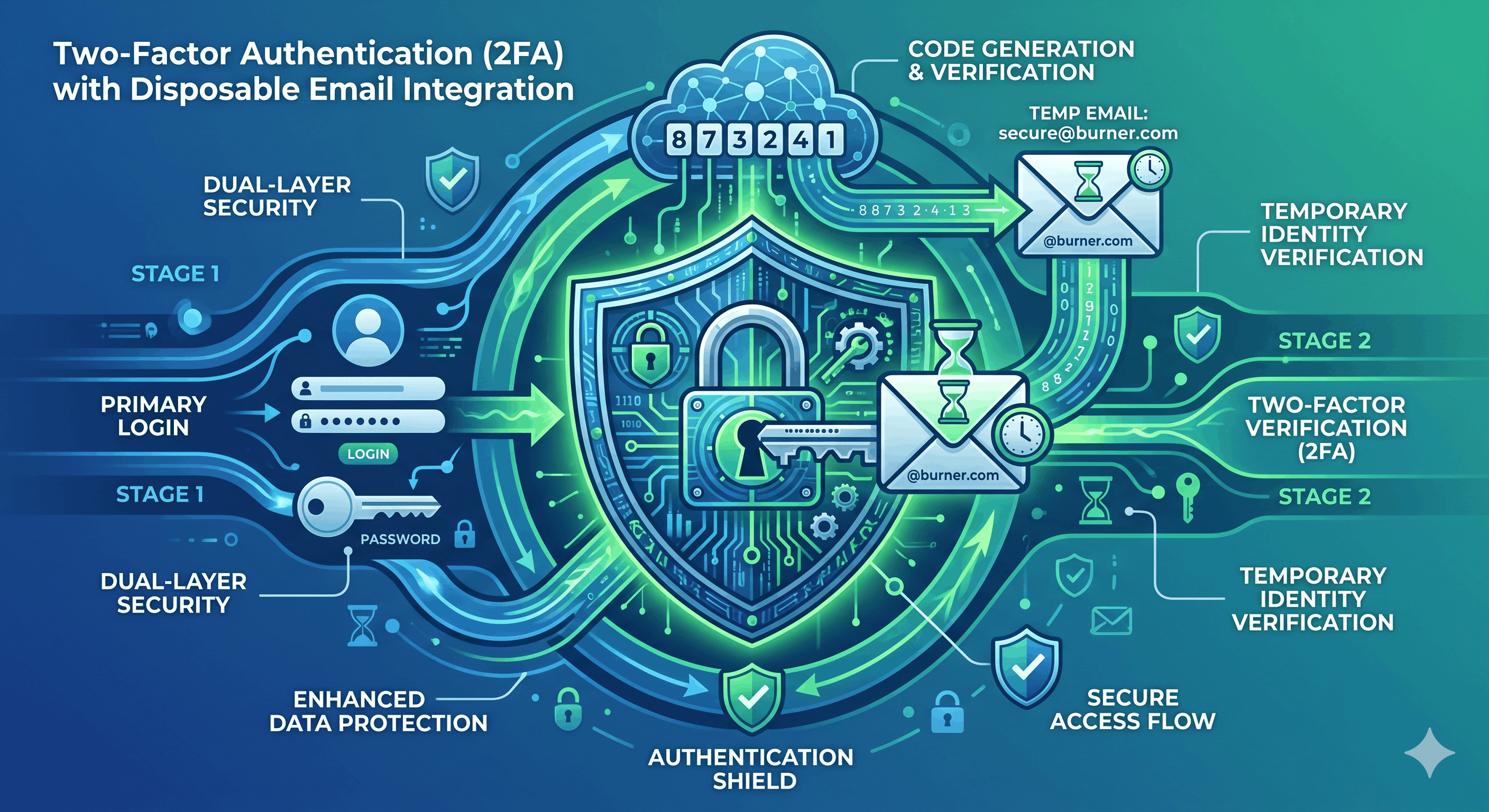
Two-Factor Authentication with Disposable Email: Security Without Compromise
Two-factor authentication (2FA) is essential for security.
Every security expert, every platform, every guide tells you the same thing: Enable 2FA on everything.
And they're right. 2FA reduces account takeover risk by 99.9%. It's the single most effective security measure you can implement.
But there's a hidden problem:
Most 2FA implementations require your real email address or phone number. This creates a massive privacy compromise that nobody talks about:
The Email-Based 2FA Dilemma:
Enable 2FA → More secure account ✓
Requires real email → Privacy exposed ✗
Email in database → Data breach risk ✗
Email sold/leaked → Spam forever ✗
Can't use temp email → No privacy option ✗
The consequences are real:
- Your email becomes permanently connected to that account
- Data breaches expose your 2FA email along with account details
- You can't easily change 2FA email without losing recovery options
- Temporary email gets rejected by most 2FA systems
- You're forced to choose: Security or Privacy (but not both)
Or are you?
The truth: You CAN have both security AND privacy when you understand how 2FA actually works and implement it strategically with disposable email.
This comprehensive guide reveals:
✅ How 2FA really works (3 types, strengths, weaknesses)
✅ Why most people implement 2FA wrong
✅ How to use disposable email with 2FA successfully
✅ Platform-specific strategies for maximum security + privacy
✅ The hybrid approach: Best of both worlds
✅ Backup and recovery without compromising privacy
✅ Advanced techniques for bulletproof security
✅ Common mistakes that break both security and privacy
Whether you're security-conscious, privacy-focused, or both, this guide will show you how to implement two-factor authentication without sacrificing your email privacy.
Understanding Two-Factor Authentication
Before optimizing it, let's understand how 2FA works.
What Is Two-Factor Authentication?
Definition: Two-factor authentication (2FA) requires two different types of credentials to access an account: something you know (password) plus something you have (phone, email, security key) or something you are (biometric).
The Three Authentication Factors:
Factor 1: Something You Know
Examples:
- Password
- PIN
- Security questions

Strength: Moderate
Weakness: Can be stolen, guessed, phished
Alone: Insufficient for sensitive accounts
Factor 2: Something You Have
Examples:
- Phone (SMS code)
- Email (verification link)
- Authenticator app (TOTP)
- Hardware security key (YubiKey)

Strength: High
Weakness: Can be lost, stolen (but harder)
Combined with Factor 1: Very strong
Factor 3: Something You Are
Examples:
- Fingerprint
- Face recognition
- Retina scan
- Voice recognition

Strength: Very High
Weakness: Can't be changed if compromised
Use: Often combined with other factors
True 2FA = Two DIFFERENT factors
The Three Types of 2FA
Type 1: SMS-Based 2FA
How It Works:
1. Enter username/password
2. Platform sends code to phone via SMS
3. Enter code to complete login
4. Access granted
Pros:
✓ Easy to use
✓ No app required
✓ Works on any phone
✓ Familiar to users
Cons:
✗ Vulnerable to SIM swapping
✗ SMS can be intercepted
✗ Requires phone number (privacy issue)
✗ Doesn't work without cell signal
✗ Weakest form of 2FA
Security Rating: 6/10 Privacy Rating: 3/10 (phone number exposed)
Type 2: Email-Based 2FA
How It Works:
1. Enter username/password
2. Platform sends verification link/code to email
3. Click link or enter code
4. Access granted
Pros:
✓ No phone required
✓ Works from any device
✓ Easy to implement
✓ Backup if phone lost
Cons:
✗ Email account becomes single point of failure
✗ If email hacked, 2FA bypassed
✗ Requires constant email access
✗ Email in database (breach risk)
✗ Temp email often rejected
Security Rating: 7/10 Privacy Rating: 4/10 (email exposed)
Type 3: App-Based 2FA (TOTP)
How It Works:
1. Install authenticator app (Google Authenticator, Authy, etc.)
2. Scan QR code to add account
3. App generates time-based codes (refresh every 30 seconds)
4. Enter current code to login
5. No internet required (codes generated locally)
Pros:
✓ Most secure common method
✓ Works offline
✓ No phone number needed
✓ No email needed
✓ Phishing resistant
✓ Can't be intercepted
Cons:
✗ Requires app installation
✗ If phone lost and no backup, lockout
✗ Slightly less convenient than SMS
Security Rating: 9.5/10 Privacy Rating: 9/10 (minimal data exposure)
Type 4: Hardware Security Keys
How It Works:
1. Purchase physical security key (YubiKey, Titan, etc.)
2. Register key with account
3. Insert/tap key when logging in
4. Access granted
Pros:
✓ Most secure method available
✓ Phishing impossible
✓ No phone/email needed
✓ Works offline
✓ Maximum privacy
Cons:
✗ Costs money ($25-50)
✗ Can be lost/stolen
✗ Need backup key
✗ Not all platforms support
Security Rating: 10/10 Privacy Rating: 10/10 (zero data exposure)
The Disposable Email + 2FA Challenge
Why Temp Email Often Fails with 2FA:
Problem 1: Platform Restrictions
Many platforms explicitly block:
- Disposable email domains
- Temporary email services
- "Suspicious" email patterns

Reason: Prevent fraud and abuse
Consequence: Temp email rejected for 2FA

Examples:
❌ "This email provider is not allowed"
❌ "Please use a permanent email address"
❌ "Disposable emails cannot be used"
Problem 2: Reliability Requirements
2FA needs:
- Email always accessible
- Instant delivery
- Long-term availability
- Recovery capability

Temp email challenges:
- May expire before needed
- Delivery sometimes delayed
- Can be burned (then unreachable)
- Recovery difficult if lost

Platforms worry: Users will lock themselves out
Problem 3: Recovery Access
Account recovery requires:
- Access to 2FA email
- Email must still exist
- Must receive recovery codes

Temp email risk:
- May have expired
- May have been burned
- May no longer exist
- Recovery impossible
The Solution: Strategic 2FA Implementation
Strategy 1: The Tiered 2FA Approach
Tier Critical Accounts (Maximum Security, Accept Privacy Trade-off)
Accounts:
- Banking and financial
- Healthcare portals
- Government accounts
- Primary email account
- Cryptocurrency exchanges

2FA Method:
✓ App-based (TOTP) - Primary
✓ Hardware key - Ideal
✓ Real email - Backup only if required

Temp Email: NO (too risky for critical)
Justification: Security > Privacy for these
Tier 2: Important Accounts (Balanced Approach)
Accounts:
- Shopping (Amazon, etc.)
- Professional accounts (LinkedIn)
- Streaming services
- Cloud storage

2FA Method:
✓ App-based (TOTP) - Primary
✓ MailDitch Premium email - Backup
   (Extended retention, won't expire)
✓ Real email - Emergency fallback

Temp Email: YES (Premium with retention)
Benefit: Security + Most privacy
Tier 3: Low-Risk Accounts (Maximum Privacy)
Accounts:
- Forums
- One-time services
- Testing accounts
- Disposable accounts

2FA Method:
✓ App-based (TOTP) if available
✓ MailDitch temp email if email-only 2FA
✓ No 2FA if not sensitive (accept risk)

Temp Email: YES (standard or disposable)
Benefit: Maximum privacy, acceptable security
Strategy 2: App-Based 2FA (Eliminates Email Requirement)
The Best Solution: Use Authenticator Apps
Why This Works:
App-based 2FA:
✓ Doesn't require email at all
✓ No phone number needed
✓ Maximum privacy (no data shared)
✓ Works with temp email for account creation
✓ More secure than email/SMS 2FA

Process:
1. Sign up with temp email
2. Enable app-based 2FA (not email/SMS)
3. Email only for initial verification
4. 2FA runs independently via app
5. Temp email can be burned safely
Implementation:
Account Creation:
- Email: [email protected]
- Verify email (one-time)
- Enable Google Authenticator/Authy
- Save backup codes
- Now 2FA independent of email

Going Forward:
- Login: Username/password + app code
- No email interaction needed
- Temp email irrelevant to 2FA
- Privacy maintained
Recommended Authenticator Apps:
1. Authy
   ✓ Cloud backup (encrypted)
   ✓ Multi-device sync
   ✓ Recovery possible

2. Google Authenticator
   ✓ Simple, clean
   ✓ No account needed
   ✗ No backup (use QR code backup)

3. Microsoft Authenticator
   ✓ Cloud backup
   ✓ Push notifications
   ✓ Multi-device

4. 2FAS (Open Source)
   ✓ Privacy-focused
   ✓ No cloud (local only)
   ✓ Open source
Strategy 3: Hardware Keys (Ultimate Solution)
The Gold Standard:
Why Hardware Keys Solve Everything:
Privacy:
✓ No email needed
✓ No phone needed
✓ No data shared with platform
✓ Anonymous account creation possible

Security:
✓ Phishing impossible
✓ Can't be remotely hacked
✓ Physical possession required
✓ Most secure 2FA method

Compatibility:
✓ Use temp email for signup
✓ Register hardware key for 2FA
✓ Email becomes irrelevant
✓ Perfect privacy + security
Implementation:
1. Purchase: YubiKey 5 NFC ($45) + backup key

2. Account Setup:
   - Sign up with temp email
   - Verify email initially
   - Register hardware key for 2FA
   - Save backup key securely
   - Temp email no longer needed

3. Usage:
   - Login: Username/password
   - Touch/insert hardware key
   - Access granted
   - Zero email interaction

4. Recovery:
   - Use backup key if primary lost
   - Or: Use saved backup codes
   - Email not involved
Supported Platforms:
✓ Google/Gmail
✓ Facebook
✓ Twitter
✓ GitHub
✓ Dropbox
✓ Most major platforms (growing)
Cost-Benefit:
Investment: $90 (2 keys)
Security: Maximum
Privacy: Maximum
Convenience: High (after setup)
ROI: Priceless
Strategy 4: The Hybrid Approach
Best of All Worlds:
Multi-Layer 2FA Setup:
Layer 1 (Primary): Authenticator App
- Most convenient
- No email/phone needed
- Use daily

Layer 2 (Backup): Hardware Key
- Maximum security
- If app unavailable
- Travel backup

Layer 3 (Emergency): MailDitch Premium Email
- Extended retention
- Won't expire
- Last resort recovery

Layer 4 (Nuclear): Backup Codes
- Printed, stored securely
- Ultimate fallback
- One-time use
Implementation:
Setup (One-Time, 30 minutes):
1. Create account with MailDitch Premium email
2. Enable authenticator app (primary)
3. Register hardware key (backup)
4. Download backup codes
5. Print backup codes, store safely
6. Test all methods

Daily Use:
- Login with app code (primary)
- Email never needed
- Privacy maintained

Emergency:
- App lost? Use hardware key
- Key lost? Use backup codes
- All lost? Use email recovery
Why This Works:
✓ Maximum security (multiple factors)
✓ Maximum privacy (temp email)
✓ Maximum reliability (redundancy)
✓ Flexibility (multiple recovery options)
✓ Peace of mind (covered for everything)
Platform-Specific Implementations
Google/Gmail with Temp Email + 2FA
Challenge:
Google blocks most temp email domains
Requires phone for verification often
Solution:
1. Initial Setup:
   - Use MailDitch Premium with custom domain
     (appears legitimate, not disposable)
   - Or: Use privacy-focused email (ProtonMail)
   - Verify with phone (Google Voice acceptable)

2. Enable 2FA:
   - Method: Authenticator app (primary)
   - Backup: Hardware key
   - Phone: Remove after setup (optional)

3. Result:
   - Strong 2FA without exposing real email
   - Can access from temp/privacy email
   - Phone optional after initial setup
Banking/Financial with Maximum Security
Challenge:
Critical accounts need bulletproof security
Banks often require real email/phone
Recovery is critical
Recommendation:
Don't use temp email for banking
Acceptable privacy trade-off for security

But:
- Use dedicated email (not primary)
- Enable strongest 2FA available
- Hardware key if supported
- Multiple backup methods
Social Media with Privacy Focus
Challenge:
Want privacy but need account security
Platforms may block temp email
Solution:
1. Account Creation:
   - MailDitch Premium (professional domain)
   - Appears legitimate
   - Passes verification

2. 2FA Setup:
   - Authenticator app (Instagram, Facebook, Twitter all support)
   - No phone number needed
   - Email only for initial verification

3. Going Forward:
   - 2FA via app
   - Email rarely needed
   - Privacy maintained
   - Account secure
GitHub/Development with Full Privacy
Optimal Setup:
1. Account:
   - Email: [email protected]
   - No phone needed
   - SSH keys for repo access

2. 2FA:
   - Primary: Authenticator app
   - Backup: Hardware key (YubiKey)
   - No email/SMS involved

3. Result:
   - Fully private developer account
   - Maximum security
   - Professional workflow
   - No personal data exposed
Backup and Recovery Strategies
The Recovery Dilemma:
Problem: Lose 2FA device
Need: Recover account access
Challenge: How without compromising security/privacy?
Solution: The Five-Layer Recovery System
Recovery Layer 1: Backup Authenticator
Setup:
- Install Authy (supports cloud backup)
- Or: Install same accounts on second device
- Encrypted cloud sync

Benefit:
- Lose phone → Still have backup device
- No email recovery needed
- Instant recovery
Recovery Layer 2: Backup Hardware Key
Setup:
- Buy 2 YubiKeys (or similar)
- Register both with all accounts
- Store backup key separately (safe, trusted person)

Benefit:
- Lose primary key → Use backup immediately
- No platform interaction needed
- Full access maintained
Recovery Layer 3: Backup Codes
Setup:
- Download backup codes when enabling 2FA
- Each code works once
- Print physical copy
- Store securely (safe, encrypted file)

Benefit:
- All devices lost → Still can login
- One-time use codes
- Get new codes after recovery
Recovery Layer 4: MailDitch Premium Recovery Email
Setup:
- Use MailDitch Premium (extended retention)
- Set as recovery email
- Never burns, always accessible

Benefit:
- Last resort if all else fails
- Platform sends recovery link
- Can regain access
- Still maintains privacy
Recovery Layer 5: Support Ticket (Nuclear Option)
Last Resort:
- Contact platform support
- Provide identity verification
- May take days/weeks
- May require ID (privacy loss)

When to Use:
- Only if all 4 previous layers failed
- Extremely rare scenario
Best Practice:
Use Layers 1-4
Avoid Layer 5 entirely

Test recovery:
- Annually attempt recovery using backup methods
- Verify all layers work
- Update if needed
Advanced Techniques
Technique 1: QR Code Backup
The Method:
When setting up authenticator app:
1. Screenshot the QR code
2. Save to encrypted storage
3. Can re-scan QR if app lost
4. Regenerates same codes

Storage Options:
- Encrypted file (VeraCrypt)
- Password manager
- Offline backup drive
Technique 2: Time-Based Code Algorithm
Understanding TOTP:
Authenticator apps use algorithm:
- Secret key (from QR code)
- Current time
- Algorithm: TOTP (Time-based One-Time Password)

Benefit:
- If you have secret key, can regenerate codes
- Backup secret key = Backup entire 2FA
- Import to any TOTP app
How to Backup Secret:
Option 1: QR code screenshot (easiest)
Option 2: Manual secret key backup
  - Most apps show "manual entry" option
  - Long alphanumeric string
  - Backup this string securely
  - Can recreate 2FA from this alone
Technique 3: Multiple Temp Emails for Different Recovery Tiers
Strategy:
Create recovery email hierarchy:

Primary Recovery: MailDitch Premium
- [email protected]
- Extended retention
- Most important accounts

Secondary Recovery: MailDitch Standard
- [email protected]
- Medium priority accounts

Tertiary Recovery: Disposable
- [email protected]
- Low priority accounts
- Can burn if needed

Benefit:
- Risk segregation
- If one compromised, others safe
- Different access methods
Common Mistakes to Avoid
Mistake 1: Using Only One 2FA Method
❌ Wrong: Only SMS 2FA

✓ Right: App-based + Backup key + Codes

Why: Single method = Single point of failure
Mistake 2: Not Saving Backup Codes
❌ Wrong: "I'll remember my authenticator"

✓ Right: Download and store backup codes

Why: Devices get lost, broken, stolen
Mistake 3: Using Same Temp Email for Everything
❌ Wrong: [email protected] for all accounts

✓ Right: Different temp email per account tier

Why: Breach of one doesn't affect all
Mistake 4: Not Testing Recovery
❌ Wrong: Set up 2FA and forget

✓ Right: Test recovery process annually

Why: Discover issues before emergency
Mistake 5: Exposing Backup Codes
❌ Wrong: Screenshot codes, save to phone

✓ Right: Print physical copy, store securely

Why: Phone hacked = Codes compromised
Mistake 6: Skipping 2FA on "Low Priority" Accounts
❌ Wrong: "This account doesn't matter"

✓ Right: 2FA on everything possible

Why: Account takeover → Access to other accounts
Measuring Your Security
Security Audit Checklist:
□ All important accounts have 2FA enabled
□ Primarily using app-based or hardware key (not SMS)
□ Backup codes downloaded and stored securely
□ Backup 2FA device or key available
□ Recovery email is MailDitch Premium (or permanent)
□ Tested recovery process within last year
□ No accounts using SMS as only 2FA
□ Temp emails used where privacy matters
□ Hardware key for highest security needs
□ All 2FA secrets backed up securely
Security Score:
10/10 items: Excellent
7-9/10: Good (improve remaining items)
4-6/10: Adequate (priority improvements needed)
0-3/10: Vulnerable (immediate action required)
Your 2FA Implementation Plan
Week 1: Foundation
- [ ] Choose authenticator app (Authy recommended)
- [ ] Consider hardware key purchase (optional but recommended)
- [ ] Set up MailDitch Premium for recovery email
- [ ] Create backup strategy document
- [ ] Download backup codes
Week 2: Critical Accounts
- [ ] Enable 2FA on banking/financial
- [ ] Enable 2FA on primary email
- [ ] Enable 2FA on healthcare accounts
- [ ] Save all backup codes
- [ ] Test recovery process
Week 3: Important Accounts
- [ ] Enable 2FA on shopping accounts
- [ ] Enable 2FA on social media
- [ ] Enable 2FA on cloud storage
- [ ] Enable 2FA on work accounts
- [ ] Document all setups
Week 4: Everything Else
- [ ] Enable 2FA on remaining accounts
- [ ] Final security audit
- [ ] Test all recovery methods
- [ ] Schedule annual security review
- [ ] Educate family on 2FA
Ongoing: Maintenance
- [ ] Monthly: Check for new accounts needing 2FA
- [ ] Quarterly: Review backup code storage
- [ ] Annually: Test recovery process
- [ ] As needed: Update when changing devices
Conclusion: Security AND Privacy Are Possible
Two-factor authentication doesn't have to mean sacrificing your email privacy.
What you've learned:
✅ The 3 types of 2FA (SMS, Email, App-based, Hardware)
✅ Why temp email often fails with 2FA
✅ The tiered 2FA approach (matching security to risk)
✅ How app-based 2FA eliminates email requirement
✅ Hardware keys as ultimate solution
✅ The hybrid approach (best of all worlds)
✅ Platform-specific implementations
✅ 5-layer recovery system
✅ Advanced backup techniques
✅ Common mistakes to avoid
Key principles:
- App-based 2FA = Privacy - No email/phone needed
- Hardware keys = Maximum security + privacy - Worth the investment
- Temp email works with proper planning - MailDitch Premium for recovery
- Backup everything - Multiple recovery layers
- Test recovery - Before you need it
- Tier your approach - Critical accounts deserve maximum security
- Don't sacrifice security for privacy - You can have both
The fundamental truth:
The best 2FA doesn't require your personal email at all.
Your next step:
Stop choosing between security and privacy. Implement 2FA that gives you both.
👉 Get MailDitch Premium for 2FA Recovery - Extended retention, never expires.
Your accounts. Your security. Your privacy.
Protect both with smart 2FA implementation today.
Related Articles
- Secure Disposable Email with Password: Complete Security Guide
- Anonymous Email Addresses: Protect Your Digital Identity
- The Complete Guide to Email Anonymity: Tools, Techniques, and Strategies
- How to Protect Your Real Email from Spam and Phishing Attacks
Secure 2FA Solutions
Quick Links:
About This Guide: Comprehensive 2FA security guide combining authentication best practices with email privacy protection.
Last Updated: May 2026
Share this security guide - Help others protect their accounts without sacrificing privacy.
Questions about 2FA and privacy? Our security team can help you design your perfect setup!